 7th March 2012, 09:03 PM
|
#1 |
|
Member
Advanced member
Join Date: Mar 2011
Posts: 32
|
 Rounded corners
So I'm starting a tutorial non specific to any program, which I think will be a good way to learn how to do things in this one.
I need to make a 2D rectangle with rounded corners. Obviously it's easy to draw a rectangle with poly lines but I'm not sure how to round the corners. Can anyone point me? |

|

|
|
8th March 2012, 04:49 PM
|
#2 |
|
Senior Member
Professional user

Join Date: Feb 2004
Location: Portland, OR
Posts: 604
|
Re: Rounded corners
Add equal numbers of additional vertices near each corner, then arrange these to create the curves you want at the corners. The vertices at the very corners will have to be "brought in", which you can do by simply selecting all four corner vertices and then resizing to a number like 95% or so. You can select parallel pairs of these, both horizontally and vertical and use the "align to axis" and drag them to position to preserve/restore symmetry.
Or, said another way, step by step. 1) Use the rectangle tool to draw a rectangle or square. 2) Enter Vertice mode. 3) Select Vertice > Insert Vertice two times. This will create three vertices between the corners on all sides of the rectangle. 4) Select and delete the center-most vertice on each side. 5) Still in vertice mode, select parallel vertices on the top/bottom and left/right sides of the rectangle and move them close to the corners, such that you will have three (or more) vertices that go around each corner. 6) Select each of the four corner vertices. 7) Enter 95 in the X and Y fields of the Scale tool at the left of the interface; Click the Scale button. This will move the corners in by an equal amount and create the rounded effect. Undo and try another number if you don't like the result visually. (If you choose to add a greater number of vertices around each corner, you may need to "scale" other pairs of vertices to get the result you want. The idea is to make changes in a symmetrical fashion, and not "eyeball" it.
__________________
Flight Sim Project Contributor My Gaming Rig: i5 2500K Quad-Core CPU at 3.3GHz MSI P67A-C43 mobo 4GB of PC12800 DDR3 memory Windows 7 1GB Galaxy GeForce GTX550 Ti video card GeForce 270.61 drivers (4/2011) Cougar joystick/throttle combo CH Pedals |
|
|
|
|
8th March 2012, 09:19 PM
|
#3 |
|
Member
Advanced member
Join Date: Mar 2010
Location: Norway
Posts: 45
|
Re: Rounded corners
It's a good thing to insert vertices multiple times without moving any of them. The shape of the model stays unchanged and the opposing side vertices are being placed exactly right, meaning that the top matches the bottom and the left matches the right. Sometimes I add a lot of vertices (but always an equal number of vertices for symmetry) until I get the ones I need. Then I delete all but the outermost ones.
This way I ensure that the ones I choose to use are perfectly aligned. For geometrical and symmetrical shapes it's always a good idea to avoid moving any vertex or surface manually by dragging it since 1) perfect symmetry will be lost and 2) it may inadvertently move the vertex along an unintended axis at the same time, especially in 3D view. However, if we set the positions by entering exact coordinates this can be avoided. I like the idea of "resizing" a symmetrical selection of vertices--I've never thought of that option 
|
|
|
|
|
9th March 2012, 12:45 AM
|
#4 |
|
Member
Advanced member
Join Date: Mar 2011
Posts: 32
|
Re: Rounded corners
Thanks, I'll give those ideas a go. I was thinking there might be a way to draw a bezier curve or some other way to draw an arc, but the vertex method will work.
|
|
|
|
|
9th March 2012, 01:44 PM
|
#5 |
|
Senior Member
Professional user
Join Date: Feb 2004
Location: Portland, OR
Posts: 604
|
Re: Rounded corners
Well.... you could draw a circle or elipse with many points to it, then remove all but what will be the corner points, and then create surfaces between the corner vertices to fill in the square/rectangle... but I'm not convinced that would be very efficient.
__________________
Flight Sim Project Contributor My Gaming Rig: i5 2500K Quad-Core CPU at 3.3GHz MSI P67A-C43 mobo 4GB of PC12800 DDR3 memory Windows 7 1GB Galaxy GeForce GTX550 Ti video card GeForce 270.61 drivers (4/2011) Cougar joystick/throttle combo CH Pedals |
|
|
|
|
10th March 2012, 02:09 PM
|
#6 |
|
Administrator
Professional user

Join Date: Jun 2003
Posts: 4,564
|
Re: Rounded corners
You could try this:
Make a cylinder (you need to use a cylinder for this since a disk will extrude differently) that has the radius of the corners you want. This one had 60 segments to make a nice curve. Select half of it (the right-hand side here) and extrude, select the other half of it (bottom here) and extrude again. Hold down the control-key when extrudng to keep it square. If you need just the rectangle part, you can select the other surfaces and just keep a single 'side'. If you then want a single polygon, press 'c' to Surface->Combine all surfaces into one. |
|
|
|
|
12th March 2012, 11:06 AM
|
#7 |
|
Member
Advanced member
Join Date: Mar 2011
Posts: 32
|
Re: Rounded corners
Thanks Andy that turned out to be the easiest way
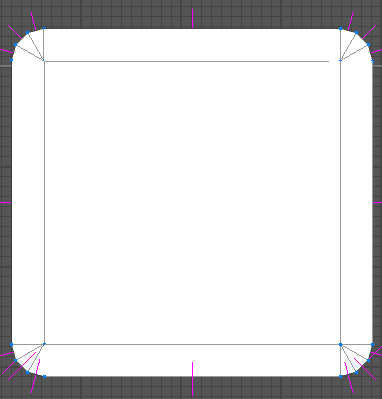
|
|
|
|
|
3rd April 2012, 02:59 AM
|
#8 |
|
Senior Member
Professional user
Join Date: May 2005
Location: Norway
Posts: 883
|
Re: Rounded corners
Andy's way is what I use as well, and you can also use it on a sphere if you need rounded cubes.
__________________
..............<<<<My Blog>>>>........... |
|
|
|
|
12th January 2017, 02:21 PM
|
#9 |
|
Member
Expert member
Join Date: Feb 2012
Posts: 58
|
Re: Rounded corners
I just came across this thread, and from it I was able to figure out my own technique that I think is pretty good for the issue of rounding corners, and in this case, the entire edge.
I made up a router bit, and then used it on the shape. I had a very square, sharp edge of a cube and I wanted to round its edges. so I made a rectangle, and a cylinder a bit bigger than the rectangle centered on the rectangular box (RB). I then from the RB object ->boolean->subtract the cylinder eaving me with 4 corner router bits. I then copied and pasted the corner I needed into a new object, and then carefully laid it over the edge I wanted to round. Then from my part I subtracted the router bit. In screenshot 04, there were some leftover surfaces for some reason, I just deleted those. for the other edge, I rotated my router bit, and placed it over that edge. I didnt' think the curve was exactly right so I stretched and skewed the router bit shape so the curve was what I wanted. some of the vertexes of the router bit were inside the shape and using the vertex mode, grabbed those vettexes and dragged them away from the part so that when I then applied the object boolean subtract to that edge. Last edited by jleslie; 12th January 2017 at 02:25 PM. |
|
|
|
 |
|
|



 Linear Mode

